Local Voice Input (Dictation): Typeless Alternative for Offline Voice Typing
Local voice input is dictation that runs entirely on your device. That means your speech-to-text happens locally, without uploading audio to the cloud, so you can type less, stay focused, and keep sensitive content private.
AI Transcription brings local voice input to macOS for now. It is a privacy-first dictation app built for a hands-free workflow: you speak, the text appears instantly, and your data stays on your device.
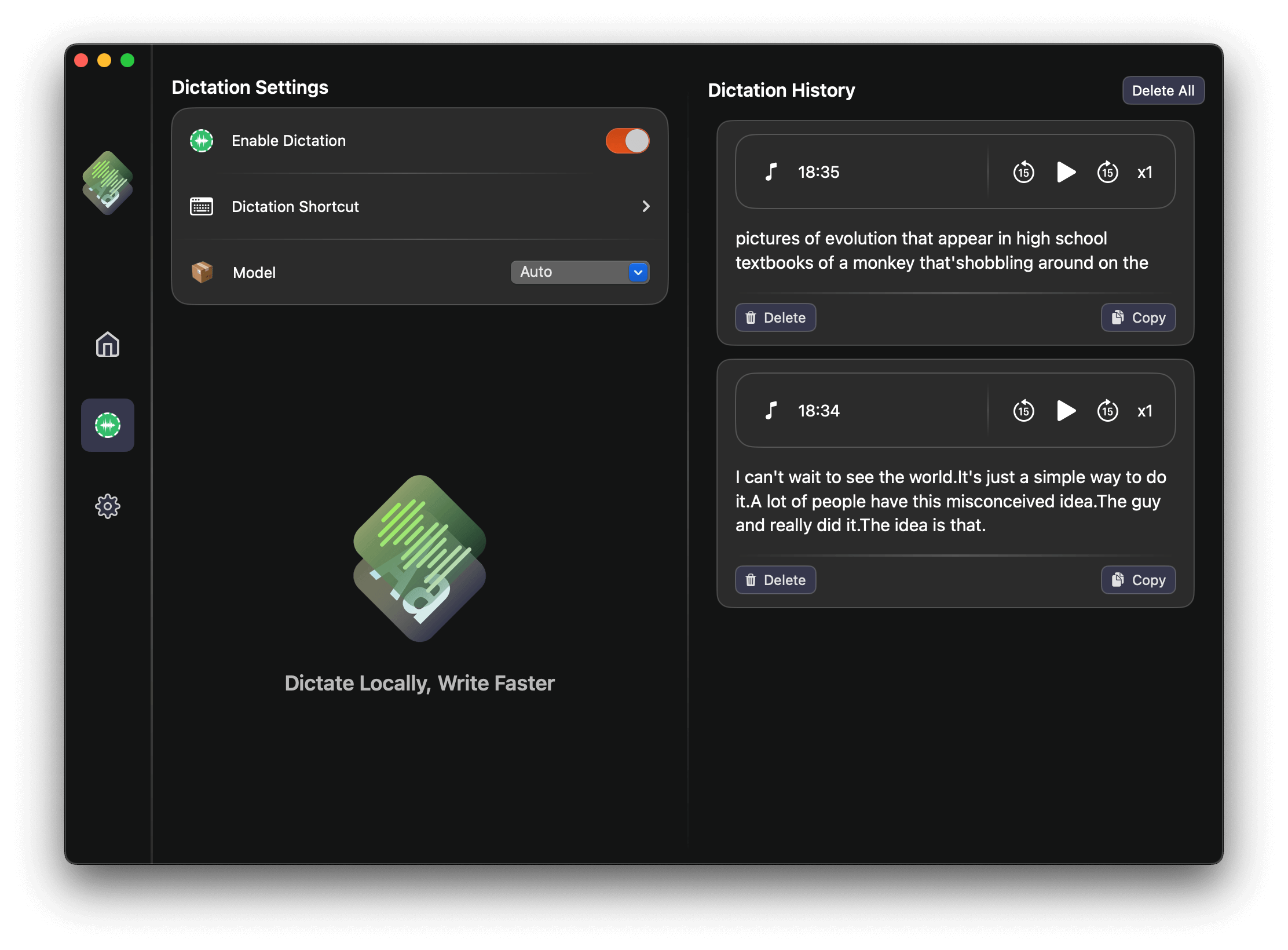
1. Local Voice Input vs Cloud Dictation
Cloud dictation sends audio to remote servers for processing. Local voice input does the opposite: speech recognition runs on-device and can work offline. The result is a faster, more private dictation experience with fewer dependencies on network availability.
For example, Typeless is a cloud dictation app that uploads speech for processing. If you want offline dictation that never uploads audio, local voice input is the simpler choice.
If you write customer emails, internal docs, or personal notes, local dictation keeps everything on your machine. This privacy-first approach is ideal for anyone who wants the convenience of voice typing without giving up control of their data.
2. Typeless Alternative for Offline Dictation
If you like the idea of Typeless but need privacy-first, offline speech-to-text, AI Transcription is a Typeless alternative that runs locally. Your audio stays on-device, so you can dictate anywhere, even without Wi-Fi.
3. Why Privacy-First Dictation Matters
Offline reliability: A local dictation app keeps working in airplanes, basements, or busy cafes. No internet, no problem.
Data control: Your audio stays on-device, which is better for sensitive content like client notes, medical ideas, or legal drafts.
Lower latency: Local speech-to-text can feel immediate because it skips round-trips to the cloud.
4. Who Benefits from Hands-Free Writing?
Writers and creators: Capture ideas faster than you can type and keep your flow going.
Busy professionals: Draft emails, reports, and messages hands-free while multitasking.
Students and researchers: Dictate notes or summaries without breaking focus.
Multilingual teams: Speak in one language and output text in another.
5. How to Use Local Voice Input in AI Transcription
Step 1: Open AI Transcription from the macOS menubar. Launch the app and start dictation instantly without switching contexts.
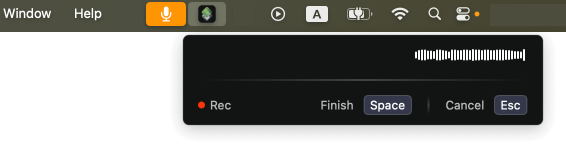
Step 2: Dictate locally, anywhere you can type. Speak naturally and watch speech-to-text appear in real time. Your audio never leaves your device.
Step 3: Review your dictation history. Reuse, edit, or copy past entries so you always have a clean record of your voice input.
6. Tips for Better Voice Typing
Use a consistent microphone: A stable mic improves accuracy and reduces background noise.
Speak in short phrases: It helps the model keep punctuation and capitalization correct.
Proofread quickly: A fast review pass makes your dictation ready to share.
7. FAQ
Does AI Transcription require internet? No. Local voice input runs on-device and works offline.
Is my audio uploaded? No. Dictation happens locally and your recordings stay on your device.
What platforms are supported? AI Transcription is available for macOS for now.
Can I use multiple languages? Yes. AI Transcription supports 90+ languages and offers translation to many output languages.
If you want a privacy-first, hands-free way to write, local voice input is the simplest upgrade you can make. Try AI Transcription and dictate faster today.